تخطي للذهاب إلى المحتوى

Remi8 AI Voice Recorder


Your complete guide to using Remi8 AI Voice Recorder and App.
Learn how to record, transcribe, organize, and recall important conversations and ideas effortlessly.
Remi8 is built to work as your AI-powered second brain, capturing voice and turning it into searchable, actionable knowledge.


Key Steps to use AI Recorder

  1. Download the Remi8 AI Mobile App.

  2. Power on the AI Recorder Device

  3. Connect AI Recorder with Remi8 App

  4. Record a Meeting using Recorder Device.

  5. Sync Recording to Remi8 App Notes.

  6. Access Transcription Text on Remi8 AI App.

  7. Access AI Summary and other AI Actions.  

Lets explore these Key usage steps of AI Recorder in details.
(1) Download the Remi8 App 

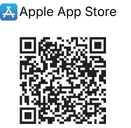
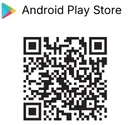
Scan the QR code below to download the app.
OR Click these links : 
Alternatively please search "Remi8 AI Voice Notes" in the iOS Apple App Store Or Android Play Store to download the APP.

Login to the Remi8 AI App

Open App, Login via preferable login method 

  • Login with Google
  • Login with Apple 
  • Login with Email

(2) Operations and Functions of AI Recorder.

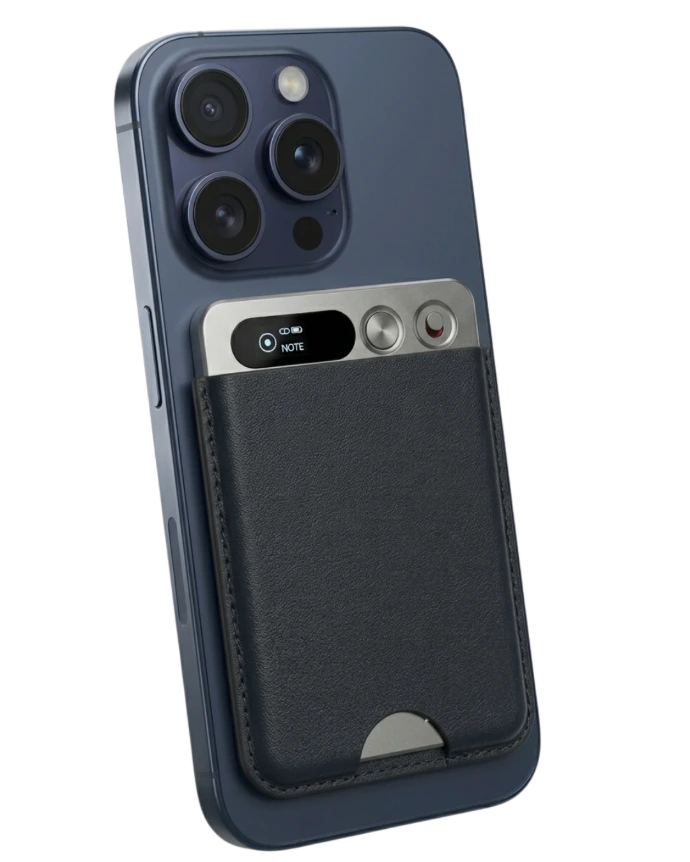
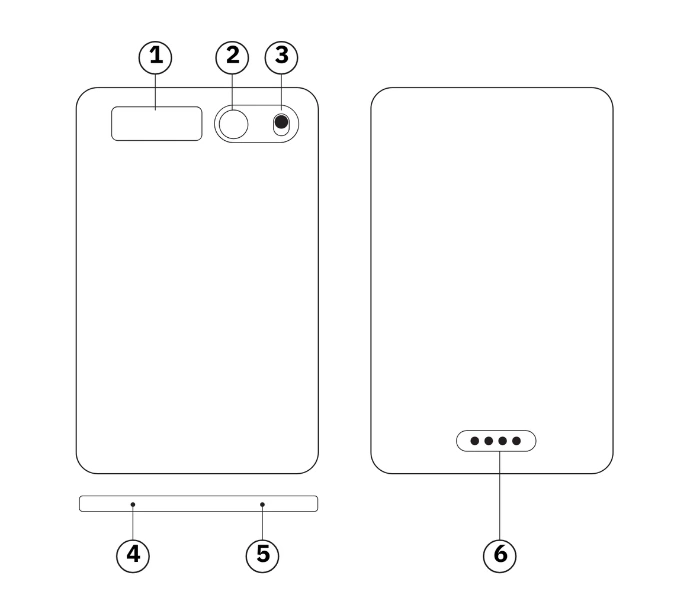
  1. Display 

  2. Power Key

  3. Record Button (Toggle Switch)

  4. Microphone holes

  5. Microphone holes

  6. Charging Interface (Magnetic)

Power On : Press and Hold 3 seconds to Power On the device. “Welcome” message will be displayed.

While device is powered On, Press and Hold 3 seconds to power off. “see you” message will be displayed.
(3) Connect AI Recorder with Remi8 App

Tap on Device icon on top-right (near Settings icon).
NOTE :  It needs bluetooth enabled on the Phone device.


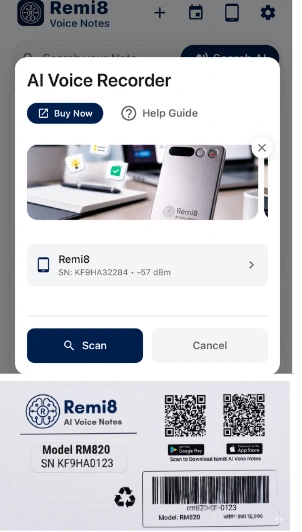
On AI Voice Recorder connection screen,
Once you press scan button, your Remi8 AI Recorder will be listed with Serial Number.
On selecting Device and providing required permission
App gets connected to the AI Recorder Devices.

NOTE: 

Please make sure your the Serial Number is matching with the Serial Number at the back of the box. (Highlighted)

At this time, the Bluetooth connection symbol of the Remi8
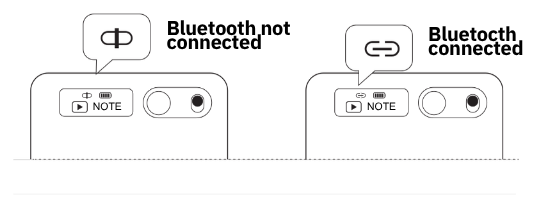
On AI Recorder Device display, Link Symbol will show Linked phone synchronizes the data on the Remi8 AI Mobile App
After a successful connection, 
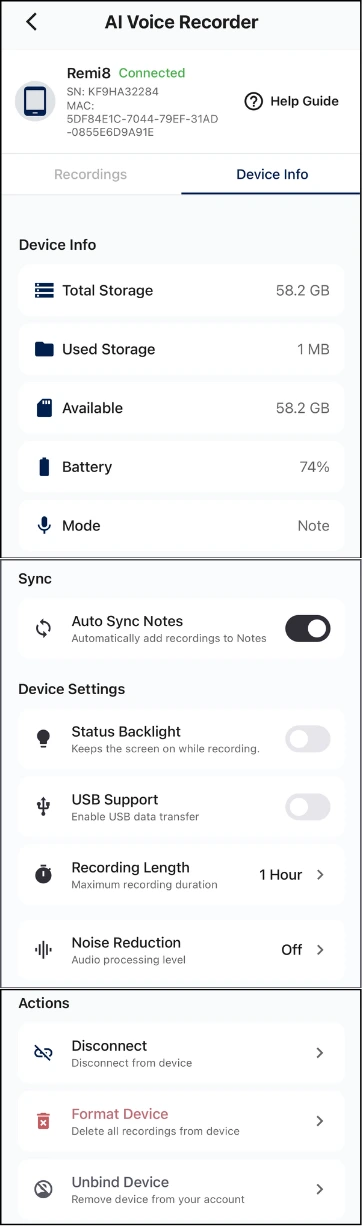
AI Voice Recorder Screen on Mobiel App 
1. Recordings 
2. Device Info Tab.

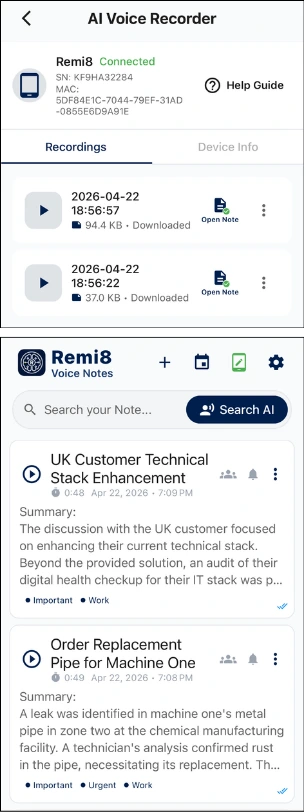
Recordings Tab Shows the List of recording available on the AI Recorder Device.
You can start Record Start / Stop Toggle switch on the Recording Device. On stop recording is saved on recording device first.

Device Info Tab : 
Status: Connected 
Device Info
- Total Storage 
- Used Storage 
- Available Storage 
- Battery Remaining 
- Record Mode : Call <--> Note 
NOTE : On AI Recorder Device Long press(2 Second) Round Button to Toggle Mode.

Device Settings : 
Sync → Auto Sync Notes : When On Recording will automatically Sync from Recorder Device to Remi8 App as Note.
Status Backlight : Default Off. 
If On - it forces the AI Recorder Display always on. Keep Off for long battery working. 
Recording Length : For long recording Recorder will split recording file for this duration.
Noise Reduction : For selecting the Microphone Noise Reduction level.
USB Support: Allows Copying Recording Files on your computer using USB Connection

Disconnect : Disconnect device from App.
Format Device : Format the AI Recorder to remove all recordings.

(4) Record a Meeting using Recorder Device 
Start Recording : Push the recording button up and the recorder vibrates once, Indicating that recording has started.

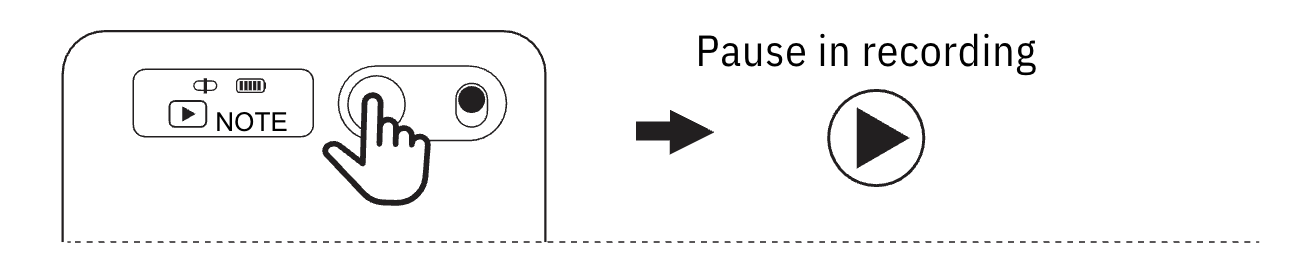
Pause Recording
Short press the power button topause while recording.

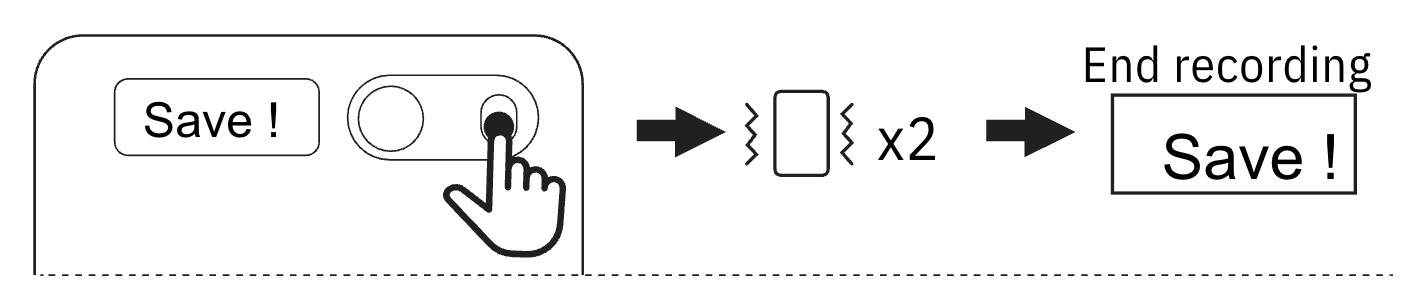
End Recording : Push the recording button down, the recorder vibrates twice, and the word "save" appears on the display, which means saving and ending the recording.

CALL Mode (Call recording mode) : 
1.When the screen is on but not in recording mode, double- click to switch to Call mode.
2.When the screen is on and recording is on, double-click to switch the mode and then restart the recording.
NOTE mode  (Normal Recording Mode)
1.When the screen is on but not in recording mode, double-click to switch to NOTE mode.
2.When the screen is on and recording is on, double-click to switch the mode and then restart the recording.

(5) Add Recording as Note & Transcription
On the Recordings Tab, from the list of recordings you can tap tap Add to Notes, this will transcribe the recording and add it Notes & knowledge based on the preferred transcription language. 
If Auto Sync Settings : On, then it will gets added as completed.

Play Recording : Once Recording is Sync with Remi8 you can play.

Open Note : Navigates you to the Recording Details to see Summary and and AI Action

Delete from Device : Deletes recording from AI Recorder Device

Delete from Device & Phone : It deletes recording from Phone App and AI Recorder both.
User Settings → Transcription Language : Selection to select preferred transcription language. Default is Auto-Detect.

Remi8 App on Home screen AI Device Icon shows information as: 
  • Green Icon when connected.
  • Shows Mode icon Call/Note.
  • Show Mic Icon when Ongoing Recording.
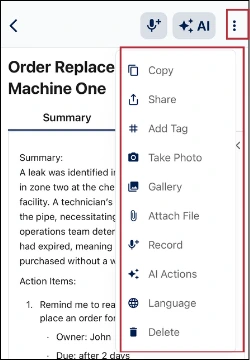
(7) Selected Recording Notes Transcription
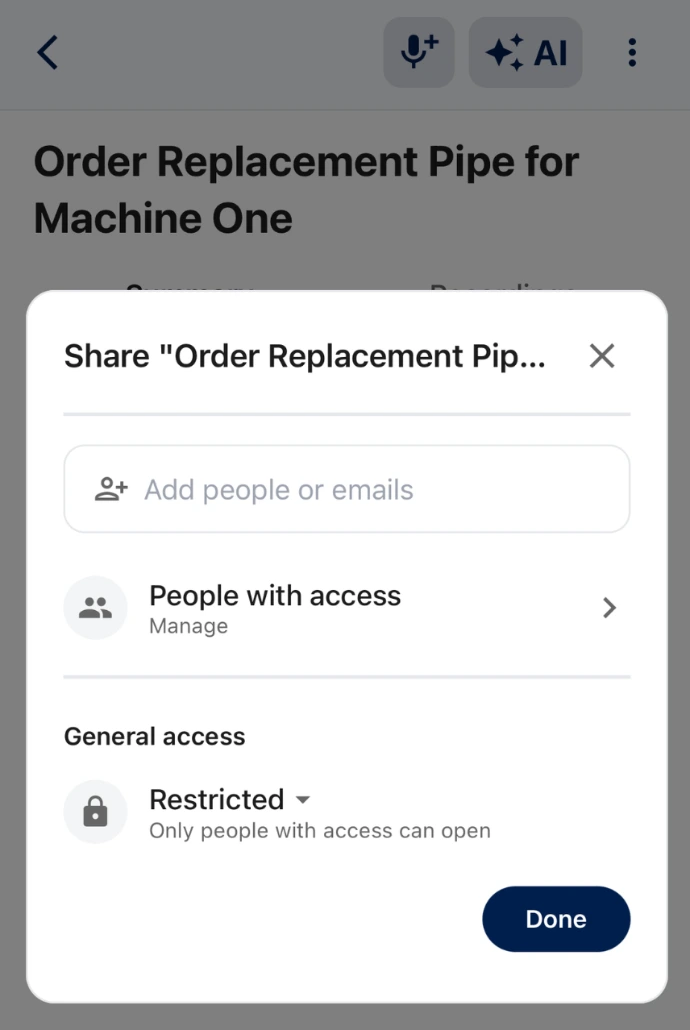
1. Can Share the Notes via email with other users. 

2. Add Tags to the Notes. AI will auto-tag based on the Transcribed Notes 

3. Reminders are auto-created if the call or notes recording content explicitly discuss the “Remind Meˮ Phrase for future Date and Time. 

4. Capture Photo: Attach photo to the recorded Notes with Phone Camera 

5. Gallery : Attach photo from Gallery. 
6. Record: attach Sub-recording if additional Voice notes needed to be added to the Call Recording 
7. Language Icon Re-Transcribe the recording in desired language. 
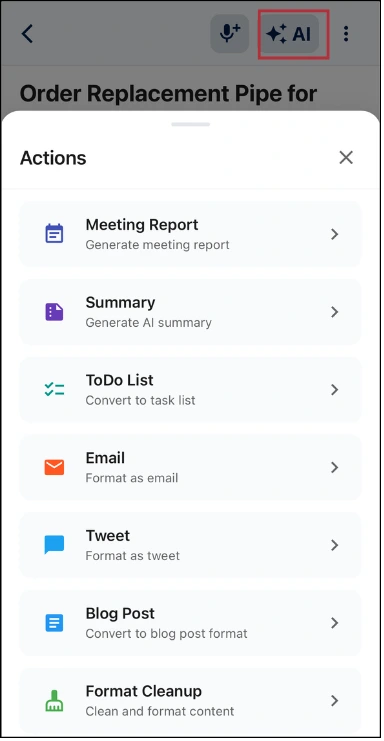
8. Action : AI Action to Summarize, Create TODO List, Create Email Draft, etc.

(8) Major AI Action on Call Recording and Notes Recording
Based on your recorded audio or notes, Remi8 can adapt content for: 

Summaries: Meetings, calls, speeches, interviews, key takeaways, and oral notes
Meetings: Business meetings, discussions, presentations, technical or family meetings 
Speeches & Learning: Speeches, lectures, training sessions, and class notes
Calls: Phone discussions, consultations, and call recordings 
Interviews: Interview recordings and structured interview notes 
Medical: Consultation notes, SOAP-style summaries, psychotherapy records 
Sales: BANT analysis, sales discussions, and client consultations 
Office Work: Contracts, project discussions, planning, and copy drafts 
Consultations: Customer needs analysis and case-based consultations

(9) Sharing Remi8 AI Transcribed Notes
Sharing the Transcribed Notes: 

Share with Email 
Allows typing the contact email and share the AI Note/ Call Transcription. 

- Shows with whom this Note is shared. 

General Sharing with LINK:
- Copy the Sharable Link and send the link on iMessage, Whatsapp to share notes. The Other user can see the shared note in their browser with link. 

Note
When sharing a link, one can revoke the shared Link. 
Once revoked it will not be accessible by user having that link.

(10) App System Upgrade

Apple and google: Open the automatic upgrade in the APP store. After the app is updated, it will be updated 

automatically without the need for users to update it manually. 

(11) Recording storage location and transcription storage location
When the APP is not connected, the audio files are stored in the memory of the Remi8 AI Voice Recorder (RM820). 

When connecting to the APP, the recordings are stored in the Recording Deviceʼs memory and the mobile phone APP. (If there are no recordings made when connecting to the APP in the AI Recording Device, they can be downloaded and transferred to the mobile phone APP after connecting to the APP.) 
The transcribing other AI Information of recordings is only stored in the mobile phone APP.

(12) Charging and data transmission
Charging method: Connect the magnetic contact of the original data cable to the RM820, and insert the USB-A male plug into a 5V/1A charger. 

The connection and usage method of OTG with mobile phones and computers: Connect the magnetic contact of the original data cable to the RM820. First, plug the USB-A male plug into the original OTG adapter, an d then plug it into the mobile phone or computer for us.

(13) Product Information
FeatureSpecification
Model number of productsRemi8 AI voice recorder (RM820)
Cell and combination methodPolymer battery / 400mAh / 1 piece
Input input interfaceMagnetic suction contact
Storage of machine64GB
Whether the recording is encryptedNo
Recording support formatMP3
Recording bit rate32kbps
Length of recordingUp to 35 hours
Mode of recordingStart recording on the machine / start recording on the APP
Power off standby timeAbout 166 days
Microphone performanceSimulated silicon wheat + bone wheat
Bluetooth protocol5.3
Transport protocolUSB 2.0
Whole machine materialAluminum alloy
Operating service temperature0 to 45 degrees Celsius

(14) Matters needing attention

Legal Restrictions
Please strictly abide by relevant laws and do not use this product illegally. The company does not assume any commitment or responsibility for the consequences of Illegal behavior.

Privacy Protection
All data is stored only on the recording device, unless you sync the recording file with the app. In this case, the file will be stored on the smartphone.

Data Security
The company is not responsible for loss or damage of personal data caused by hardware, software, product maintenance, battery replacement or other unexpected circumstances.

Product Setting
Due to firmware upgrades, the actual settings and usage of this product may be different from this manual. If product performance and functions change, please refer to the latest product.

Security
Keep the device and accessories out of the reach of children to avoid choking or other injuries.Do not expose the battery (battery pack or installed batteries) to fire or excessive heat (such as sunlight, etc.).

Important Notice
Do not use chemicals or reagents to clean the recorder, as this will damage the surface of the recorder and corrode it.

Battery
If the product is not used for a long time, please charge and discharge the product once every three months to prevent battery damage.

Memory storage capacity
The system software estimates a small amount of storage space. Actual available capacity will be slightly less than what is shown in the specifications.

The Management of Low-Power Radio Frequency Radiation Motors
For low-power radio frequency equipment that has obtained a password certificate, companies, businesses or users are not allowed to change the frequency, increase the power or change the original design characteristics and functions without approval. The use of low-power radio frequency equipment shall not affect flight safety and interfere with legal communications: if interference is found, it should be immediately stopped and can only be used again after improvement to no interference. The legal communication in the preceding paragraph refers to radio communications operating in accordance with the provisions of the Telecommunications Management Act. Low-power radio frequency equipment must withstand interference from legal communications or industrial, scientific and medical radio wave radiating electrical equipment.

Radio frequency exposure
This device has been evaluated to comply with the general RF exposure requirements. This device may be used without restriction in portable exposure condition.

Get Your Remi8 Device Guide Now!

Download User Guide Now

 Storage & Privacy

  • Recordings are stored on the device when offline

  • When connected, recordings sync to the app

  • Transcriptions and AI data live inside the app only

Your data stays private unless you choose to sync or share it.


 Charging & Data Transfer

Charging
Use the magnetic charging cable with a 5V/1A power source.

Data Transfer
Connect via OTG adapter to access recordings on mobile or computer.


 Device Specifications

  • Storage: 64GB

  • Recording format: MP3

  • Recording duration: Up to 35 hours

  • Battery: 400mAh polymer battery

  • Bluetooth: Version 5.3

  • Body: Aluminum alloy


 Important Notes

  • Follow local laws when recording conversations

  • Do not record without consent where required

  • Keep device away from children

  • Avoid exposure to heat, water, or chemicals


Ready to Never Forget Again?

Join thousands of busy people who trust Remi8 AI as their Productivity Enhancing AI Tool.


Free to startYour Personal Second Brain